Skip to content

Guide updated · 2026

HP Ink Tank 315 Driver for Windows: The Safe Way, No Bundled Software

This page contains only a direct link to the official support.hp.com driver page and a step-by-step guide to installing the HP Ink Tank 315 on Windows 11, 10, 8, 7 and XP. No third-party installers, no “accelerated” downloaders.

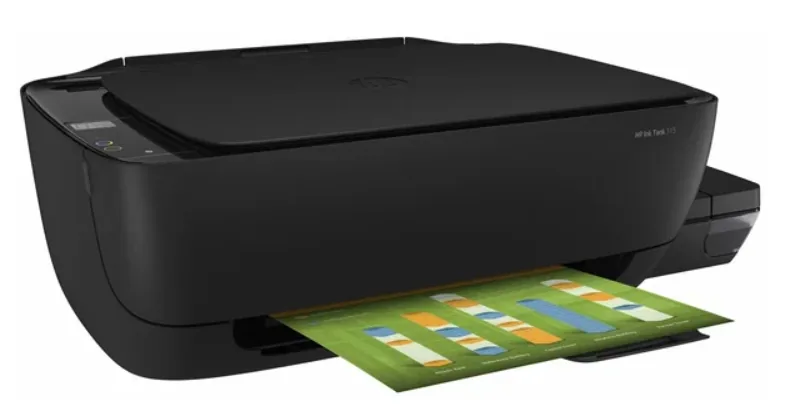
HP Ink Tank 315 — струйное МФУ с СНПЧ

Why we only link to support.hp.com

Search results for “HP Ink Tank 315 driver” are full of sites that host a self-made installer instead of the real HP package — sometimes it is not even the right driver for this model. Some of these pages add a fake “checked by antivirus” badge to look more trustworthy.

We don’t do any of that. Every download button on this site points straight to HP’s own support portal, which detects your Windows version and offers the correct, digitally signed package directly from HP’s servers.

It costs us nothing to do this the right way, and it saves you the guesswork of figuring out which of a dozen near-identical “download” buttons on some other page actually leads anywhere useful.

Important: we are not employees or partners of HP Inc. This is an independent reference site that simply helps you find the right support page faster.

Choose your Windows version

Detailed guide for your Windows version

The general steps are the same for every version, but each dedicated page covers the quirks of that specific OS — from the exact path in Device Manager to the errors typical for that Windows version.

Step by step, with screenshots

How to install and set up the HP Ink Tank 315

Below are real screenshots from the official support.hp.com page, so you can see exactly what to expect before you click anything.

1. Open the official driver page

Click the download button at the top of this page — it opens support.hp.com, HP’s own support portal. In the search field enter HP Ink Tank 315 or simply follow the link, which already points to the correct model page.
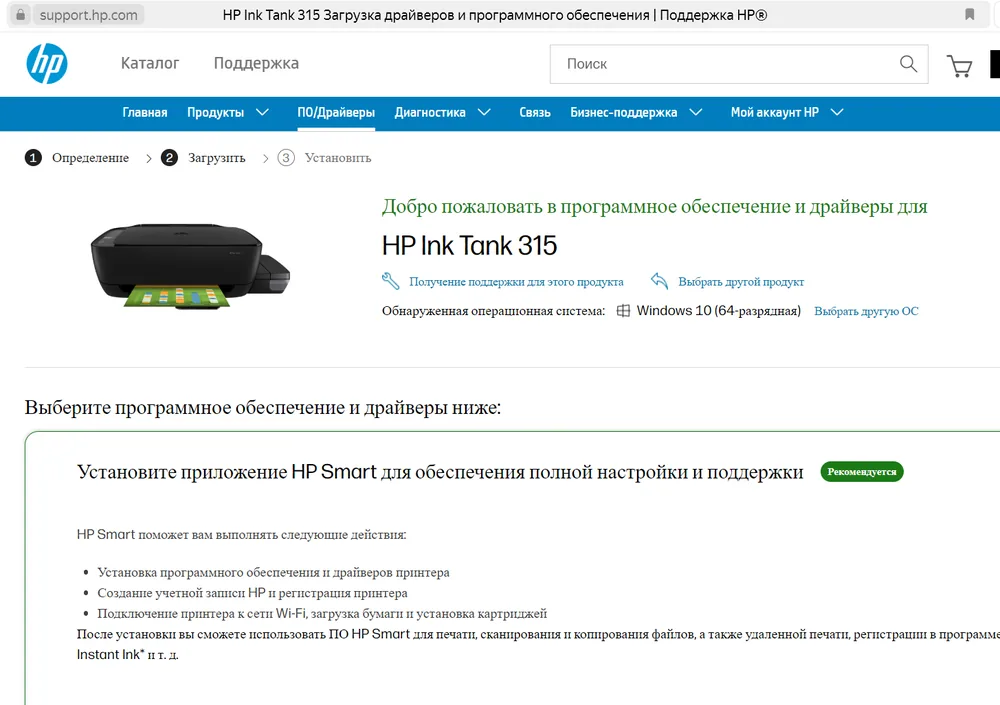
2. Let HP detect your OS, then click “Download”

The page automatically detects your Windows version (in the example below it recognised Windows 10 64-bit) and offers the recommended HP Smart app or a standalone driver package. HP Smart is the easiest option: it installs the driver, connects the printer over USB or Wi-Fi and lets you register it.

support.hp.com page detecting the OS and offering the HP Smart app

3. Run the downloaded file

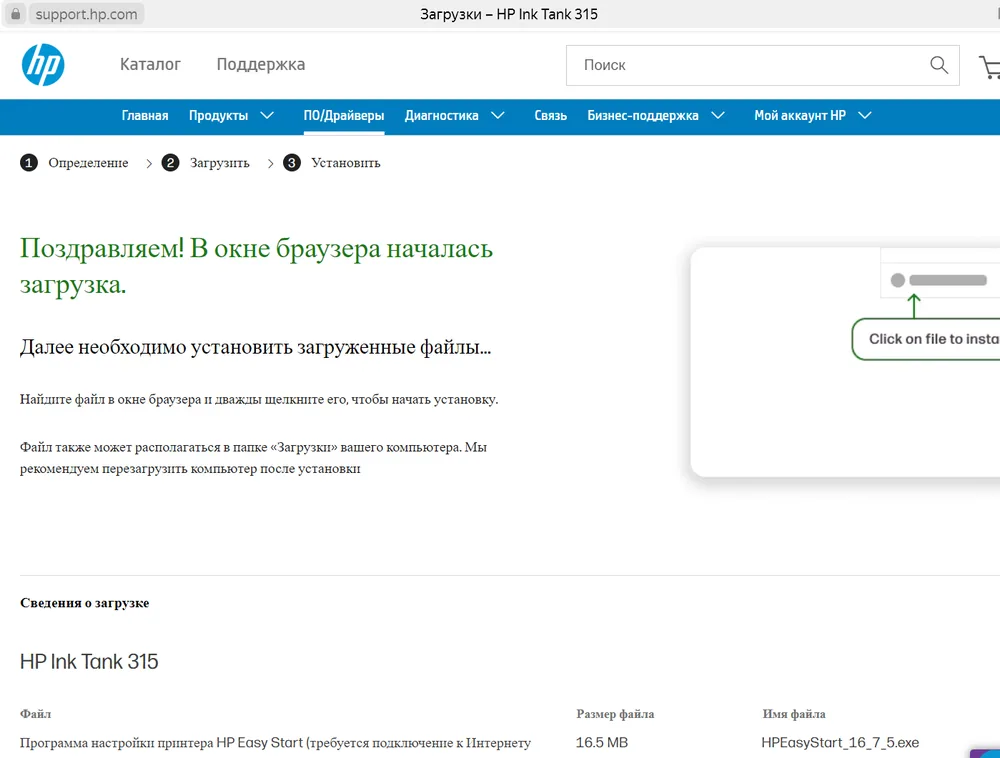
Once the download starts, HP shows a confirmation screen like the one below. Find the downloaded file in your browser’s download bar or in the Downloads folder and double-click it to start installation. HP recommends restarting your computer after installation.

support.hp.com “Download started” confirmation page

4. Connect the printer and finish setup

Connect the printer with the USB cable (or, on Wi-Fi capable variants, follow the wireless setup wizard) only when the installer asks you to — connecting earlier can cause Windows to install a generic driver instead of the HP one. After installation, print a test page from Settings → Bluetooth & devices → Printers & scanners to confirm everything works.

Specifications

HP Ink Tank 315: what kind of printer is this

The HP Ink Tank 315 is an entry-level all-in-one from HP’s refillable-tank lineup: print, scan and copy in one compact body, without cartridges — ink is topped up straight from bottles into transparent tanks. It connects over USB only (no Wi-Fi on this particular model) and uses HP’s GT51/GT52 ink bottles, which is what makes it noticeably cheaper to run per page than a cartridge printer.

Full specifications and box contents →
FunctionsPrint, scan, copy
Print speedup to 8 ppm black, up to 5 ppm color
Print resolutionup to 1200 × 1200 dpi (black), up to 4800 × 1200 dpi (optimized, color)
ScannerFlatbed, up to 1200 × 1200 dpi
ConnectivityUSB 2.0 (Hi-Speed), no Wi-Fi
InkHP GT51 (black) and HP GT52 (color C/M/Y) ink bottles
Supported OSWindows 7, 8/8.1, 10, 11 (32/64-bit), macOS

If something goes wrong

Common driver installation problems

01Printer not detected

Check the USB cable and port (use a rear port on desktop PCs if possible), and make sure the printer is powered on and not in sleep mode. Reinstall the driver after reconnecting the cable.

02Installer freezes or errors out

Temporarily disable your antivirus during installation, run the installer as administrator, and make sure drive C: has enough free space (at least 2 GB).

03Prints come out streaky

This is usually not a driver issue but an ink or printhead issue. Run the printhead cleaning utility from the HP Smart app or the Windows printer control panel.

FAQ

Frequently asked questions

Is the HP Ink Tank 315 driver really free?

Yes. HP printer drivers on support.hp.com are distributed free of charge — you only pay for the printer itself and consumables (ink).

Does the HP Ink Tank 315 driver work with 32-bit Windows?

Yes — support.hp.com lists separate packages for 32-bit and 64-bit Windows 7, 8 and 10. The site detects your bitness automatically, but you can also pick it manually via the “Choose a different OS” link.

Do I need HP Smart, or can I install just the driver?

HP Smart is the recommended option, but not the only one. Below the HP Smart offer on the download page there is a link to a basic driver-only package without extra software — useful if you only need printing.

Does the HP Ink Tank 315 work with Windows 11?

Yes, HP officially supports this model on Windows 11 — see our dedicated “Windows 11 driver” page for details and specifics.

Is it safe to download the driver from this site?

We don’t host or distribute anything ourselves — both download buttons on this page open the official support.hp.com domain directly. You download the file straight from HP’s own servers.

Where can I find the printer’s full technical specifications?

On our dedicated “Specifications” page — it covers print speed and resolution, scanner parameters, compatible GT51/GT52 ink, dimensions and the exact list of what ships in the box.